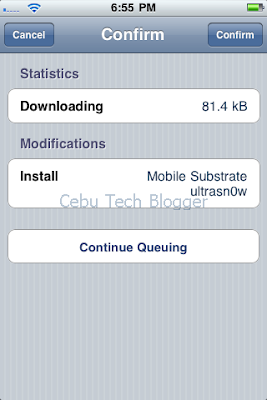
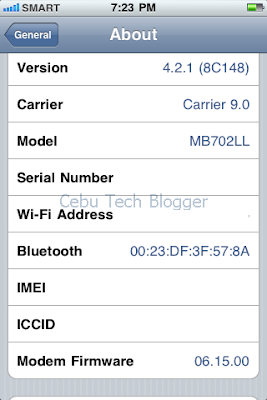
The Chronic Dev Team has already released the latest version of its Greenpois0n jailbreak both for Mac and Windows users.
Greenpois0n RC5 is capable of jailbreaking iOS 4.2.1 untethered on the following devices: iPhone 4, iPhone 3GS (all bootroms), iPod Touch 2G (all bootroms) iPod Touch 3G, iPod Touch 4G, and the iPad. You can check the articles below to learn more about the latest release of Greenpois0n.
Greenpois0n RC5 for Mac OS X
Greenpois0n RC5 for Windows
What to do first:
Before jailbreaking your iPhone, you need to have a backup of your device using iTunes. To do that, simply follow the steps as instructed below.
1. Connect your iPhone to your PC.
2. Launch iTunes.
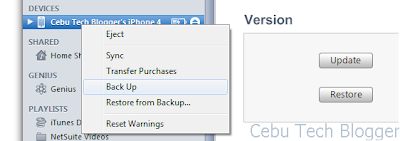
3. On the left pane of iTunes interface, you will see list of devices connected. Look for your iPhone.
4. Click on your iPhone, right-click, and select Back Up.
Now you’re done backing up your iPhone.
Important Note:
When you jailbreak your iPhone, you have to accept the fact that you void Apple warranty. That is, though I guarantee this tutorial will absolutely work, you still have to do this at your own risks. If you need a baseband unlock for your iPhone, you should not proceed to upgrading your iOS to 4.2.1 immediately.
iPhone 4 users should note that when you upgrade to iOS 4.2.1, your modem firmware or baseband will be updated also from 1.59.00 to 3.10.01. The same thing with iPhone 3GS users, your baseband will be updated from 5.13.04 to 5.15.04. I will reiterate once again that the baseband that comes with iOS 4.2.1 are not unlockable, just yet. The workaround on upgrading to iOS 4.2.1 without updating your unlockable baseband is to use the latest version of TinyUmbrella. If you have a question on how to do that, just leave a comment below.
How to Jailbreak iPhone 3GS and iPhone 4 on iOS 4.2.1 using Greenpois0n RC5:
In this tutorial, I’m using an iPhone 4 in the process which is also applicable to iPhone 3GS users. Current baseband is 2.10.04 in which using TinyUmbrella is not necessary anymore since I don’t need my iPhone 4 to be unlocked. You probably have the same baseband if you got your iPhone 4 already installed with iOS 4.1.
So here we go…
1. Download iOS 4.2.1 directly from Apple server. Check specific download links below.
iPhone 3GS iOS 4.2.1
iPhone 4 iOS 4.2.1
If you’re already using iOS 4.2.1, proceed to step 3.
2. Upgrade your iPhone firmware to iOS 4.2.1 using iTunes. Again, use the latest version of TinyUmbrella if you want to preserve your unlockable baseband.
To upgrade your firmware using iTunes, connect your iPhone to the PC and select your device on the left pane of the iTunes interface. In the Summary tab, hold Shift-key on your keyboard and click Update. And then locate your downloaded iOS 4.2.1 to start the firmware upgrade. (Don’t worry; iTunes will do all the rest of processes here.)
Note: It's always best to restore fresh iOS 4.2.1 before doing the jailbreak, particularly if your device is jailbroken with the iPhone Dev Team's Monte (the one used in Redsn0w jailbreak).
3. Download the latest version of Greenpois0n. You can find direct and mirror download links from this post: Greenpois0n RC5 for Windows
4. Unzip Greenpois0n RC5 to any folder you want.
5. Launch Greenpois0n application.
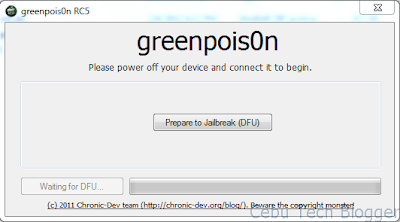
6. Connect iPhone to your PC. And then power it off.
7. Click “Prepare to Jailbreak (DFU)” in the Greenpois0n interface. Follow the instructions on the Greenpois0n interface to put your iPhone in DFU mode. Here's a video I recorded on how to do that.
You will be asked to:
7.a Press and hold the Sleep button for 2 seconds.
7.b Press and hold Home button for 10 seconds, while continue holding Sleep button.
7.c Release Sleep button, and continue holding Home button for 15 seconds.
If you failed to follow the instructions correctly, don’t worry. It won’t mess your iPhone. You will be asked to try it over and over again until you successfully put your device in DFU mode.
8. Once your iPhone is already in DFU mode, hit the “Jailbreak” button.
Greenpois0n will now start the jailbreak process.
9. Once jailbreak is complete, just click the “Quit” button.
You should see text scrolling on your iPhone screen in verbose mode and your iPhone will reboot.
There you can see a new Loader application on your iPhone’s Home screen.
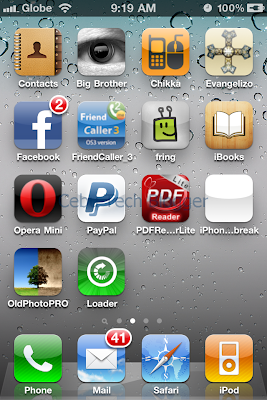
10. Tap on the Loader icon to launch the app. Select “Cydia” and tap “Install Cydia” button to install. Your iPhone will start downloading Cydia files at this point.
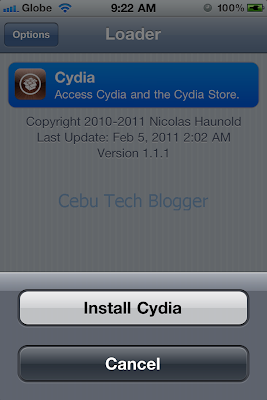
Once Cydia is already installed, you can remove the Loader app as you don’t need it anymore. To do that: just select Options button, and then tap “Remove Loader.app” button to uninstall.
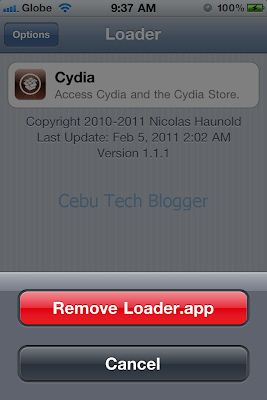
Congratulations! Now you have an “untethered” jailbroken iPhone on iOS 4.2.1. You should reboot your iPhone and launch “Cydia” from the home screen. Finally, install the latest updates.
If you follow this detailed guide thoroughly, you would be able to successfully jailbreak your iPhone on iOS 4.2.1 using Greenpois0n RC5. Good luck and extend your thanks to the Chronic Dev Team!
For unlockers:
If you need to unlock the baseband of your iPhone 4, follow this guide: How to Unlock iPhone 4 Baseband on iOS 4.2.1.
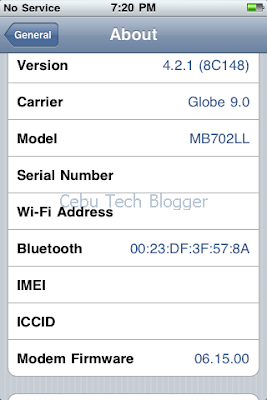
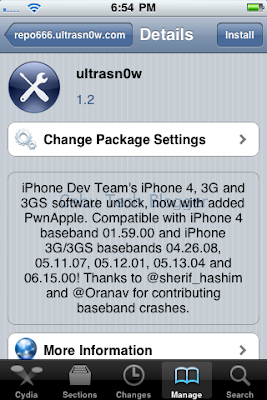
If your iPhone 3GS has been accidentally upgraded to iOS 4.2.1 and also updated the baseband to 05.15.04 which is not unlockable by Ultrasn0w for the time being, your only hope is to upgrade the baseband to 6.15.00 which is unlockable by Ultrasn0w. Check how to Unlock Baseband 5.15.04 on iPhone 3GS Running iOS 4.2.1.
Greenpois0n RC5 is capable of jailbreaking iOS 4.2.1 untethered on the following devices: iPhone 4, iPhone 3GS (all bootroms), iPod Touch 2G (all bootroms) iPod Touch 3G, iPod Touch 4G, and the iPad. You can check the articles below to learn more about the latest release of Greenpois0n.
Greenpois0n RC5 for Mac OS X
Greenpois0n RC5 for Windows
What to do first:
Before jailbreaking your iPhone, you need to have a backup of your device using iTunes. To do that, simply follow the steps as instructed below.
1. Connect your iPhone to your PC.
2. Launch iTunes.
3. On the left pane of iTunes interface, you will see list of devices connected. Look for your iPhone.
4. Click on your iPhone, right-click, and select Back Up.
Now you’re done backing up your iPhone.
Important Note:
When you jailbreak your iPhone, you have to accept the fact that you void Apple warranty. That is, though I guarantee this tutorial will absolutely work, you still have to do this at your own risks. If you need a baseband unlock for your iPhone, you should not proceed to upgrading your iOS to 4.2.1 immediately.
iPhone 4 users should note that when you upgrade to iOS 4.2.1, your modem firmware or baseband will be updated also from 1.59.00 to 3.10.01. The same thing with iPhone 3GS users, your baseband will be updated from 5.13.04 to 5.15.04. I will reiterate once again that the baseband that comes with iOS 4.2.1 are not unlockable, just yet. The workaround on upgrading to iOS 4.2.1 without updating your unlockable baseband is to use the latest version of TinyUmbrella. If you have a question on how to do that, just leave a comment below.
How to Jailbreak iPhone 3GS and iPhone 4 on iOS 4.2.1 using Greenpois0n RC5:
In this tutorial, I’m using an iPhone 4 in the process which is also applicable to iPhone 3GS users. Current baseband is 2.10.04 in which using TinyUmbrella is not necessary anymore since I don’t need my iPhone 4 to be unlocked. You probably have the same baseband if you got your iPhone 4 already installed with iOS 4.1.
So here we go…
1. Download iOS 4.2.1 directly from Apple server. Check specific download links below.
iPhone 3GS iOS 4.2.1
iPhone 4 iOS 4.2.1
If you’re already using iOS 4.2.1, proceed to step 3.
2. Upgrade your iPhone firmware to iOS 4.2.1 using iTunes. Again, use the latest version of TinyUmbrella if you want to preserve your unlockable baseband.
 |
| Upgrading firmware to iOS 4.2.1 using iTunes |
Note: It's always best to restore fresh iOS 4.2.1 before doing the jailbreak, particularly if your device is jailbroken with the iPhone Dev Team's Monte (the one used in Redsn0w jailbreak).
3. Download the latest version of Greenpois0n. You can find direct and mirror download links from this post: Greenpois0n RC5 for Windows
4. Unzip Greenpois0n RC5 to any folder you want.
5. Launch Greenpois0n application.
6. Connect iPhone to your PC. And then power it off.
7. Click “Prepare to Jailbreak (DFU)” in the Greenpois0n interface. Follow the instructions on the Greenpois0n interface to put your iPhone in DFU mode. Here's a video I recorded on how to do that.
You will be asked to:
7.a Press and hold the Sleep button for 2 seconds.
7.b Press and hold Home button for 10 seconds, while continue holding Sleep button.
7.c Release Sleep button, and continue holding Home button for 15 seconds.
If you failed to follow the instructions correctly, don’t worry. It won’t mess your iPhone. You will be asked to try it over and over again until you successfully put your device in DFU mode.
8. Once your iPhone is already in DFU mode, hit the “Jailbreak” button.
Greenpois0n will now start the jailbreak process.
9. Once jailbreak is complete, just click the “Quit” button.
 |
| Verbose text as seen during jailbreak process |
There you can see a new Loader application on your iPhone’s Home screen.
10. Tap on the Loader icon to launch the app. Select “Cydia” and tap “Install Cydia” button to install. Your iPhone will start downloading Cydia files at this point.
Once Cydia is already installed, you can remove the Loader app as you don’t need it anymore. To do that: just select Options button, and then tap “Remove Loader.app” button to uninstall.
Congratulations! Now you have an “untethered” jailbroken iPhone on iOS 4.2.1. You should reboot your iPhone and launch “Cydia” from the home screen. Finally, install the latest updates.
If you follow this detailed guide thoroughly, you would be able to successfully jailbreak your iPhone on iOS 4.2.1 using Greenpois0n RC5. Good luck and extend your thanks to the Chronic Dev Team!
For unlockers:
If you need to unlock the baseband of your iPhone 4, follow this guide: How to Unlock iPhone 4 Baseband on iOS 4.2.1.
If your iPhone 3GS has been accidentally upgraded to iOS 4.2.1 and also updated the baseband to 05.15.04 which is not unlockable by Ultrasn0w for the time being, your only hope is to upgrade the baseband to 6.15.00 which is unlockable by Ultrasn0w. Check how to Unlock Baseband 5.15.04 on iPhone 3GS Running iOS 4.2.1.